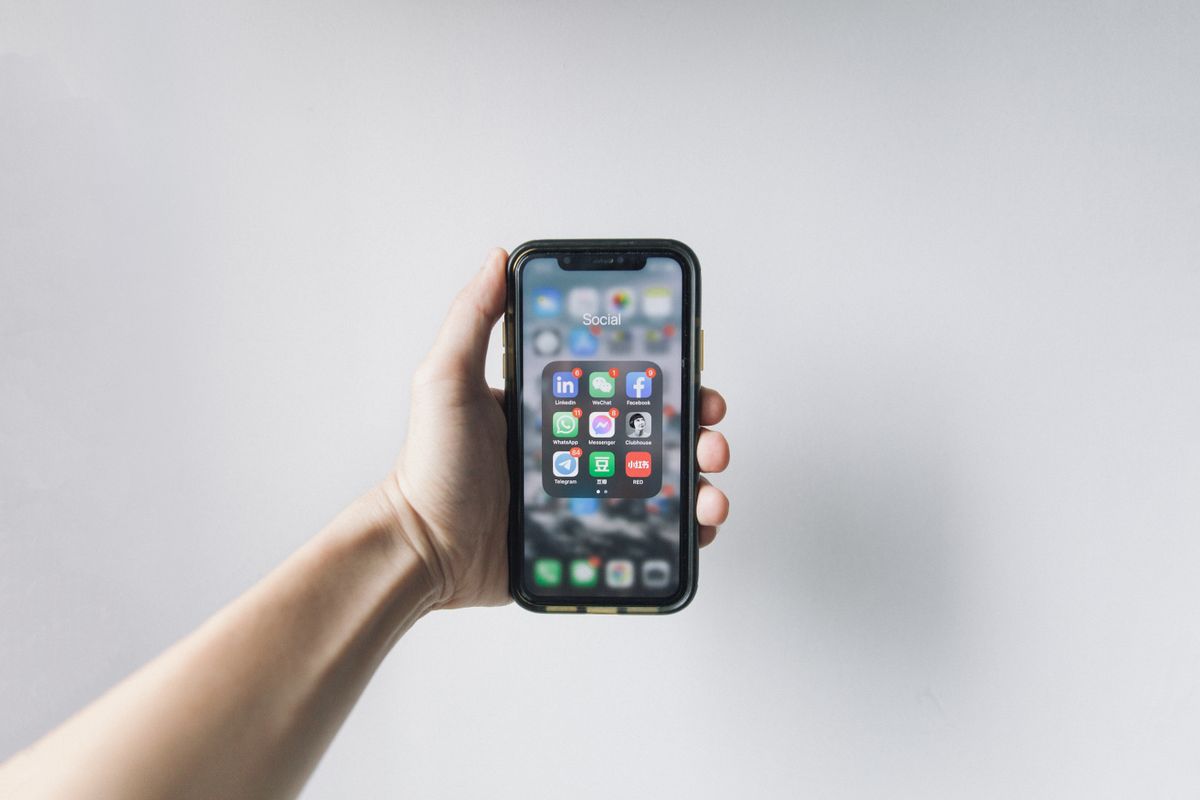
How to Prevent Installing Apps on iPhone
Stop yourself (or your kid) from installing distracting or risky apps on iPhone. Full Screen Time setup plus how to seal the settings.
How to Prevent Installing Apps on iPhone
Whether you're trying to stay off Instagram, block your kid from downloading TikTok, or stop yourself from reinstalling Chrome around your porn blocker at the exact moment your resolve wavers, here's how to disable app installs on iPhone properly — including a gap most guides miss entirely if you're in the EU, and the one step that determines whether any of this actually holds.
Step 1: Open Screen Time
Settings → Screen Time → Turn On Screen Time (if not already on)
Step 2: Open Content & Privacy Restrictions
Toggle Content & Privacy Restrictions on.
Step 3: Disable installing apps
- Tap iTunes & App Store Purchases
- Set Installing Apps to Don't Allow
The App Store icon will disappear from your Home Screen entirely — not grayed out, not hidden behind a warning, just gone, which is a good visual confirmation that the setting actually took effect.
Step 4: Also block deleting apps (important)
In the same menu, set Deleting Apps to Don't Allow.
Why? If you can delete apps, you can delete the apps that block you, then re-enable installs later, then reinstall whatever you deleted originally... a messy multi-step workaround that's still much easier than it should be if only one of these two settings is locked. Block both, every time.
Step 5: If you're in the EU, there's a second switch you need
Since iOS 17.4, EU users can install apps from outside the App Store entirely — alternative marketplaces, downloaded straight from a developer's website, as a direct result of the Digital Markets Act. Apple added this specifically for regulatory compliance, and it runs on a separate setting from the one above, in its own submenu most people never open.
Settings → Screen Time → Content & Privacy Restrictions → App Installations & Purchases → App Marketplaces → Don't Allow
Skip this and "Installing Apps: Don't Allow" only blocks the App Store — a sideloaded marketplace app can still let someone install whatever they want, completely undermining everything you configured in Step 3. Most setup guides were written before this existed and never mention it, which means a lot of EU users following older guides have a gap they don't know about.
Step 6: Block in-app purchases (optional)
Set In-app Purchases to Don't Allow if you're trying to stop spending or accidental purchases as part of the same broader cleanup.
Step 7: Set a Screen Time passcode
Use Screen Time Passcode → 4-digit code. Required to ever change any of the above, which is exactly why Step 8 and Step 9 matter as much as they do.
Step 8: Don't set a recovery email
If you add your Apple ID for recovery, you can reset the code in seconds, from any device, without needing the original code at all. Skip recovery, or use someone else's Apple ID if you want a genuine accountability layer rather than a backdoor with your own name on it.
Step 9: Seal the passcode with LockIn
This is the part most guides skip entirely, treating Step 7 as the finish line when it's really just the halfway point. You knowing the passcode means, functionally, no real restriction exists — it's just a setting you haven't turned off yet.
LockIn generates the Screen Time passcode for you, hides it, and locks it for as long as you choose. No reinstalling apps, no alternative marketplaces, no undoing any of it, because there's no code in your head to type in when the urge shows up.
Troubleshooting
The App Store icon is gone but I can still install something. Check whether it came from an alternative marketplace (EU only) — see Step 5. This is by far the most common cause when someone insists their restrictions "aren't working" but Steps 1 through 4 are genuinely configured correctly.
Does this affect updates to apps I already have? No — Installing Apps and Deleting Apps only affect new installs and removals, not updating apps you already kept. Your existing apps will keep receiving updates normally.
FAQ
Will this block app updates too? No, only new installs and deletions of apps not currently on your phone.
What if I share an Apple ID with a family member? Recovery becomes a real risk in that setup — anyone with access to that shared Apple ID can reset your Screen Time passcode without your knowledge. Use a separate Apple ID for this if you can, specifically to keep Step 8 meaningful.
Is this reversible once LockIn seals the passcode? Not until your chosen timer ends. That's not a limitation — for this specific use case, it's the entire feature.